Why Old and Blurry Photos Need the Right AI Upscaler
It was a tiny, wallet-sized print from the 1950s. The paper had creases, faded sepia tones, and severe surface grain.
Turning a photo into a 24×36-inch framed print requires substantial resolution. When scanning an original print and zooming into a 400-pixel digital scan, it often collapses into an unusable grid of blurry squares.
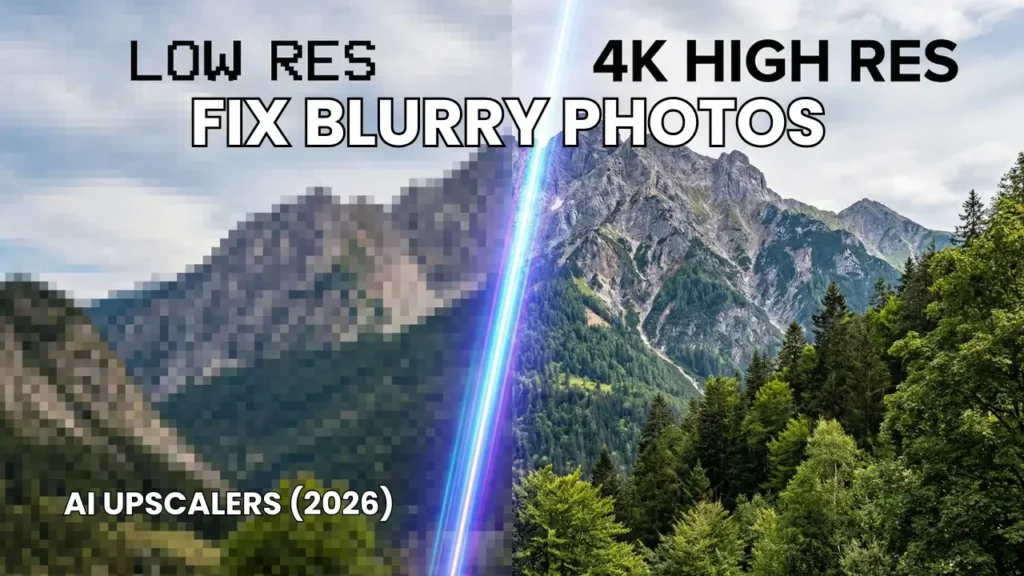
Traditional photo editors simply stretch existing pixels and blur the jagged edges. In 2026, modern machine learning approaches this differently. If you need an ai to make image clearer, neural networks analyze scene context and synthesize missing textures like skin pores, iris details, and fabric weaves from scratch.
Evaluating leading upscaling software requires comparing outputs across diverse image types, including low-resolution smartphone captures, scanned prints, compressed web graphics, and AI generative renders, to determine the best ai upscaler for different workflows and budgets.
Disclosure: This post contains affiliate links. If you use these links to buy something, we may earn a commission at no extra cost to you.
Quick Summary & Top Picks
If you want the quick answer before the deep technical breakdowns, here is how the top tools stack up for different tasks:
Magnific AI: Best overall for mind-blowing detail hallucination, digital art, and generative upscaling up to 16x.
Topaz Photo AI: The best ai upscaler for blurry photos if you are a serious photographer wanting offline RAW processing without subscriptions.
Upscayl: Best 100% free, open-source desktop tool running locally on your graphics card with zero recurring fees.
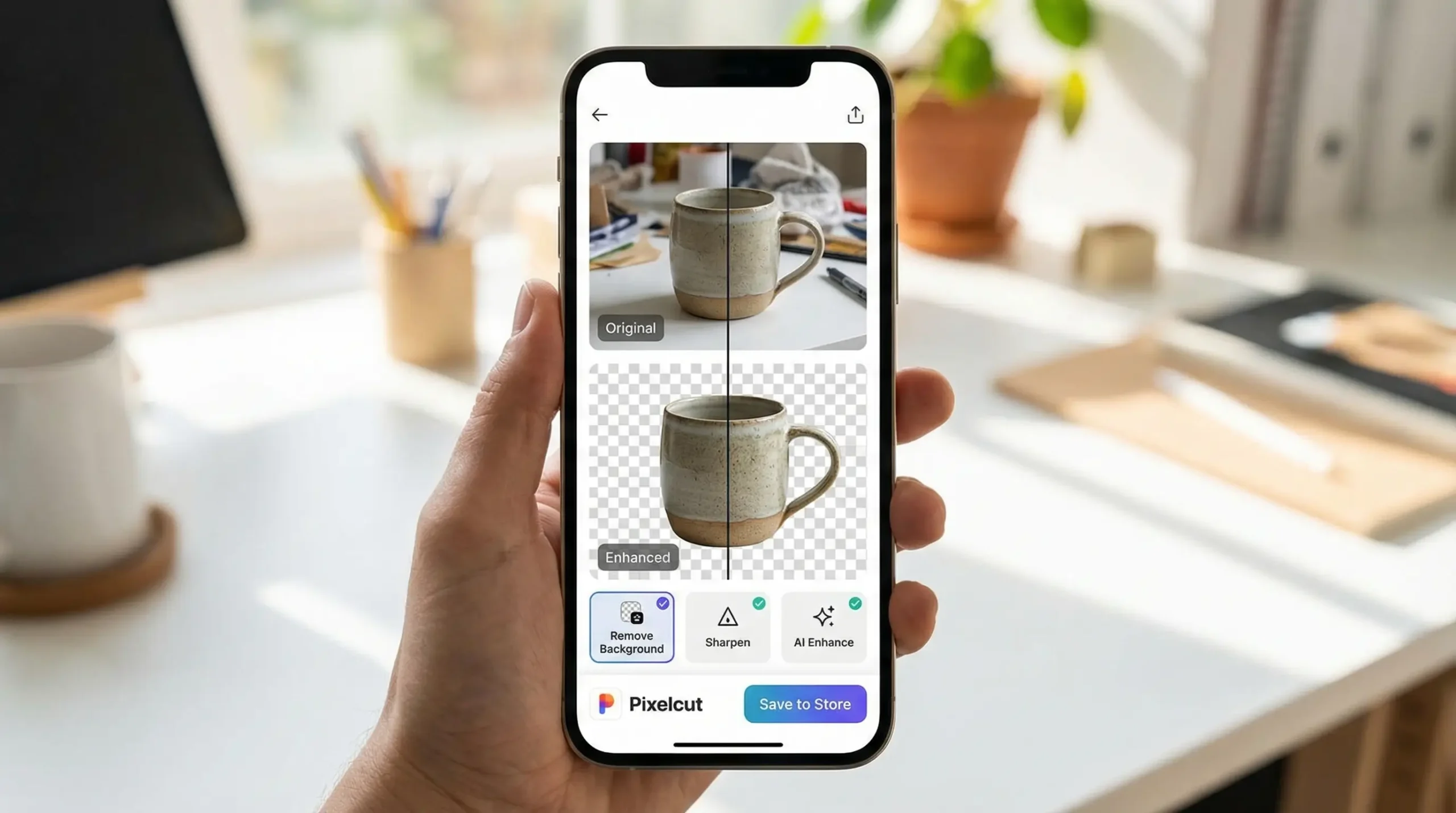
Pixelcut: Best cloud suite for online storefronts needing immediate background removal and clean product sharpening.
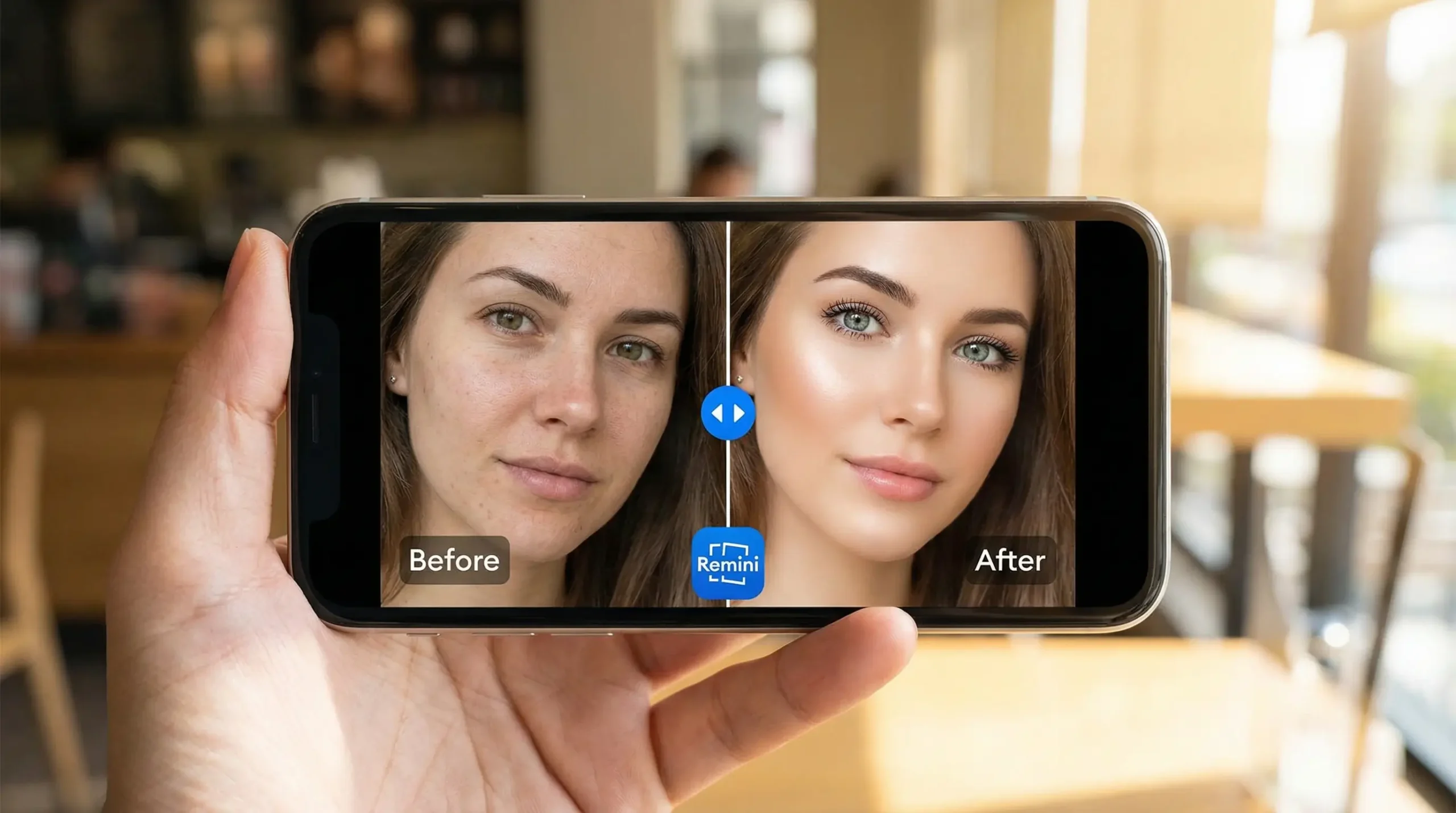
Remini: The premier mobile ai that makes blurry photos clear for out-of-focus facial shots, night selfies, and vintage family portraits.
5 Best AI Tools to Fix Blurry Photos (2026 Review)
1. Magnific AI
BEST FOR HYPER-DETAIL
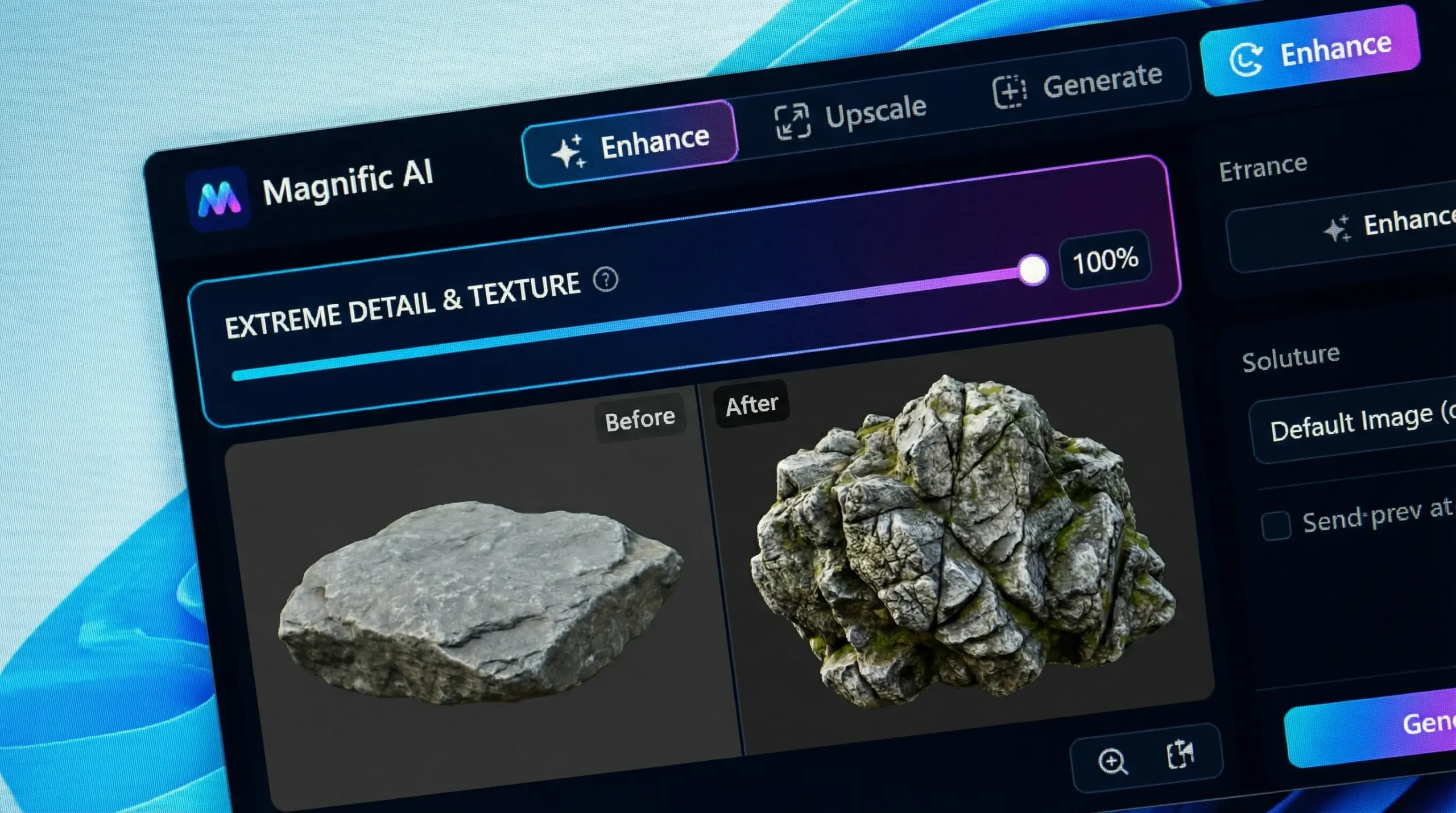
Overview: Magnific AI remains the golden standard for generative detail synthesis. Unlike classic upscalers that mathematically guess pixel values, Magnific uses a guided diffusion architecture that imagines realistic micro-textures where none existed in the original capture.
Feature Overview: Magnific can enhance compressed low-resolution portraits, allowing users to adjust the “Creativity” slider, tune “HDR” levels, and select the updated “Portraits & Fine Skin” engine preset.
Magnific can push outputs well past 8K, synthesizing fine details such as eyelashes, skin texture and fabric stitching. Because those details are generated rather than recovered from the original, results should be checked carefully when accuracy matters.
Real Friction Point: Turnaround times depend directly on cloud server loads. Furthermore, if you turn the “Creativity” slider past +4, the model completely reinvents facial architecture, resulting in a face that no longer matches the original subject.
Who Should NOT Use This: Forensic experts, legal teams, or strict documentary archivists who require absolute pixel-level preservation without synthetic AI additions.
Pros
Unrivaled generative detail on skin, textiles, and organic surfaces
Scales up to 16x (exceeding 10,000 pixels wide)
Deep prompt guidance controls to steer specific textures
Specialized modes for portraits, sci-fi art, and architectural renders
Cons
Hefty recurring subscription with strict monthly token caps
No free trial tier to test before committing
Can alter distinct facial features if creativity is cranked too high
2026 Pricing: Plans are listed in euros: Premium €15/month (€10.50/month billed annually), Premium+ €34/month and Pro Starter €83/month (excluding VAT). No permanent free plan exists.
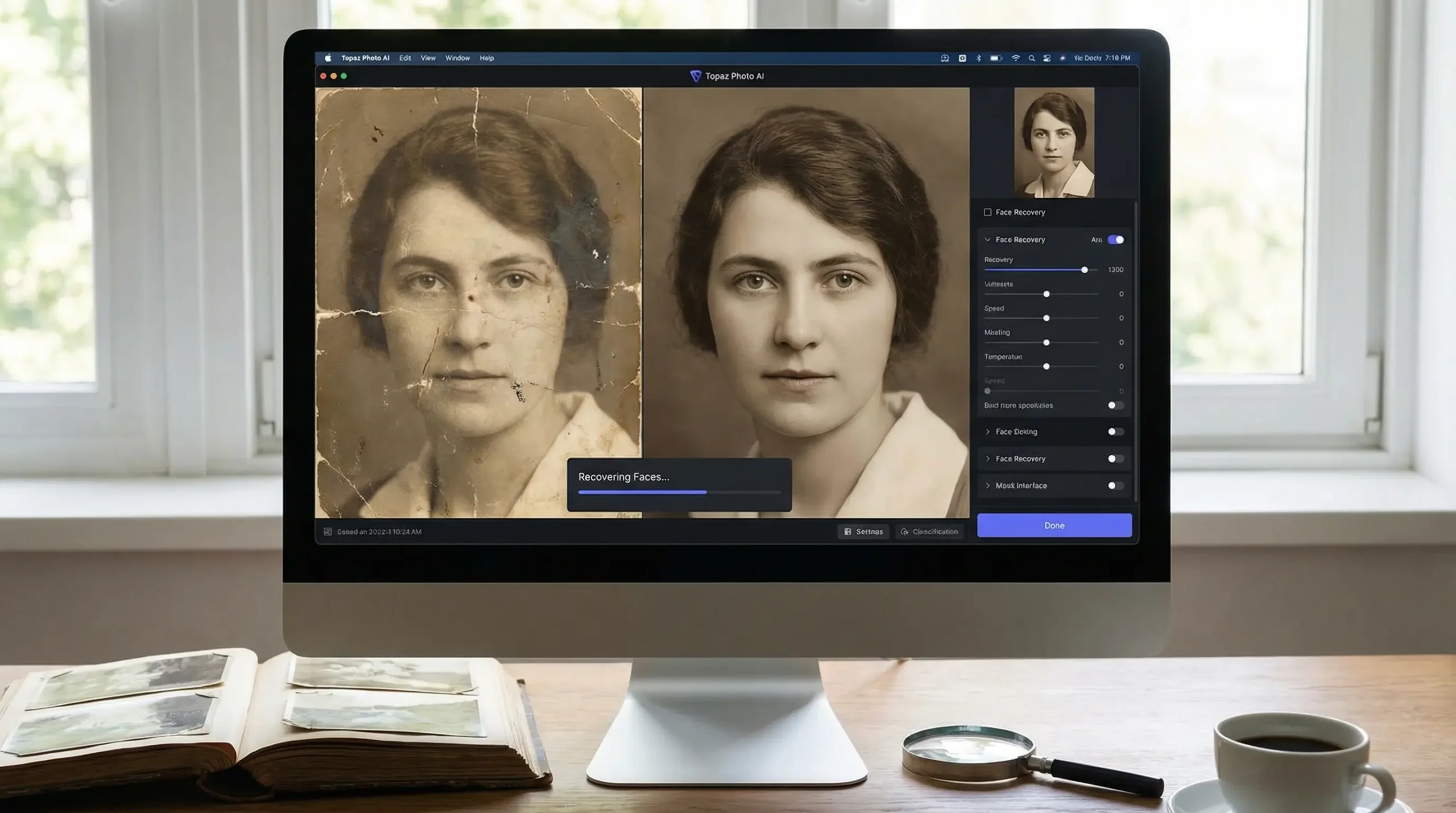
Overview: Topaz Photo AI is a standalone desktop workhorse engineered for commercial photographers and retouchers. Instead of hallucinating fantasy elements, Topaz ranks as the best ai for blurry photos when your objective is recovering genuine optical detail, removing severe sensor noise, and correcting motion blur.
Core Capabilities: The software is designed to clean up high-ISO photography and low-light captures, targeting heavy grain and mild lens softness.
Topaz Photo AI’s Autopilot automatically detects lens distortion, color noise and edge softening, and processes RAW files locally without adding synthetic painterly artifacts. Processing speed depends heavily on the GPU, so large RAW batches can take several minutes on a laptop.
Real Friction Point: The desktop app pushes hardware hard. If you attempt batch processing on a laptop with integrated graphics, rendering a single uncompressed RAW file can take upwards of 90 seconds while spinning the internal fans to full capacity.
Who Should NOT Use This: Casual smartphone users who simply want to clean up an Instagram profile pic without investing in desktop software or dedicated hardware.
Pros
Yearly plan ($199) costs less than most monthly cloud upscalers
Processes images 100% offline with total client privacy
Direct plugin workflow for Adobe Lightroom Classic and Photoshop
Pristine optical RAW de-noising and camera profile corrections
Cons
Subscription only since 2025 ($199/year for the Personal plan)
Demands a dedicated, modern GPU for efficient rendering
Full commercial use requires the $599/year Pro plan
2026 Pricing: Subscription only — the one-time license was retired in 2025. Personal costs $39/month or $199/year; Pro is $599/year and adds full commercial use and seat management.
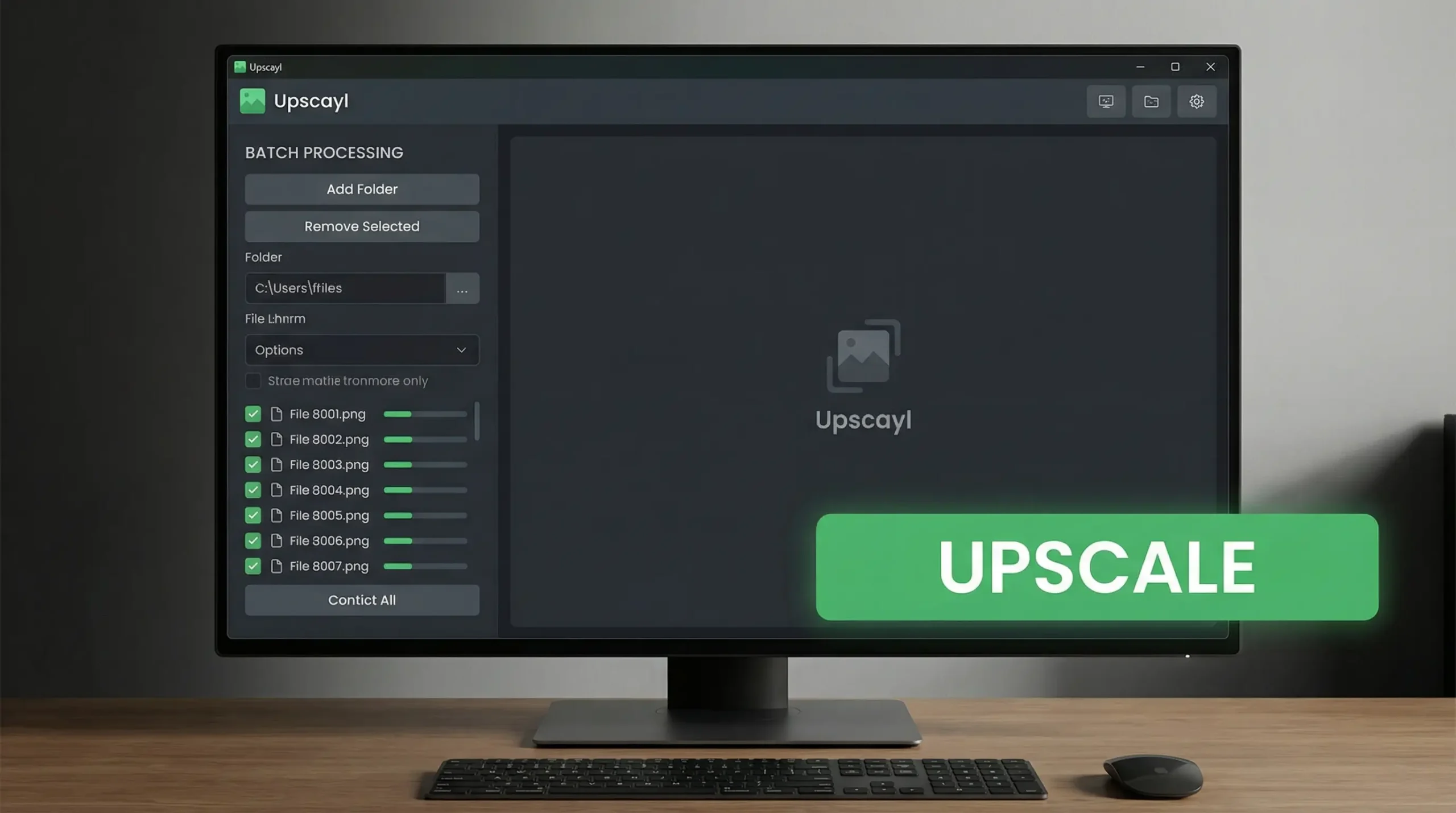
Overview: Upscayl is an open-source, community-led project built for macOS, Windows, and Linux. It packages robust open-weight neural models like Real-ESRGAN, Fast Real-ESRGAN, and Remacri inside an accessible, clean desktop interface.
Core Capabilities: Upscayl runs locally on Windows workstations equipped with dedicated GPUs. It can upscale legacy game textures and low-resolution digital drawings, offering options like the built-in “Digital Art” preset at 4x scaling.
Sharpness along high-contrast lines is clean with minimal ringing artifacts, and the desktop client processes batch queues entirely offline, without an account, sign-in or web connection.
Real Friction Point: The tool relies on Vulkan-compatible hardware. If your graphics drivers are outdated or your setup relies on entry-level integrated graphics, Upscayl will either throw an initialization error or crawl during export.
Who Should NOT Use This: People looking to reconstruct severely damaged, out-of-focus facial features from antique family portraits. Upscayl sharpens edges, but it does not synthesize complex missing anatomical geometry.
Pros
100% free and open-source forever (no subscriptions, watermarks, or limits)
Uncapped local batch processing without waiting in cloud queues
Protects sensitive files by operating offline
Consistently crisp line preservation for digital art, anime, and illustrations
Cons
Requires a Vulkan-capable graphics processor
Lacks fine-tuning sliders for prompt-guided generative styling
Facial restoration options are limited compared to dedicated portrait tools
2026 Pricing: The desktop app is completely free and open source ($0) and upscales up to 16x. The optional Upscayl Cloud, for users without a dedicated GPU, starts at $24.99/month (300 credits).
Overview: Pixelcut is an all-in-one visual toolkit created for digital shop owners, dropshippers, and inventory managers. It pairs an AI 4K enhancer with instant background knockouts, studio shadow generation, and batch editing tools.
Core Capabilities: Pixelcut provides a web batch pipeline directly in Chrome, enabling users to improve poorly lit smartphone product photos taken under harsh lighting conditions.
In a few clicks, Pixelcut can upscale a batch of product photos to 4K, remove a cluttered background, add a clean backdrop and render realistic contact shadows.
Real Friction Point: The sharpening engine is tuned strictly for merchandise and package edges. On wide landscape captures with fine tree branches, the edge filter can over-compensate, creating noticeable white halo rings against the sky.
Who Should NOT Use This: Fine-art photographers or anyone requiring manual control over camera calibration profiles and RAW color science.
Pros
Comprehensive e-commerce toolkit (upscale + background removal + studio lighting)
Fast cloud processing (under 5 seconds per file)
Effortless synchronization between desktop browser and mobile apps
Zero technical learning curve
Cons
Free tier limits output resolution and applies subtle compression
Aggressive edge sharpening can create visible halos on complex scenes
Minimal granular customization sliders
2026 Pricing: Generous free tier with standard resolution. Pixelcut Pro costs $9.99/month or $59.99/year for unmetered 4K upscaling and full batch tool access.
Overview: Remini transformed mobile photo repair and stands as a widely referenced ai that makes blurry photos clear. It runs on specialized facial reconstruction models tuned on millions of human portraits to rebuild eyes, teeth, and hair from poorly focused mobile shots.
Typical use case: group photos taken in dim light, where faces are soft, motion-blurred and noisy from slow shutter speeds.
Remini processes each face separately and can reconstruct eye catchlights, teeth lines and eyebrow detail so a blurry portrait looks sharply focused. The reconstructed details are AI-generated, so they may not match the real person exactly.
Real Friction Point: Remini’s aggressive paywall design is frustrating. The free mobile tier forces you through unskippable video ads before every export. Furthermore, when subjects are angled in semi-profile, the model sometimes inserts a generic stock facial structure that loses the person’s identity.
Who Should NOT Use This: Creators primarily editing landscape, real estate, or product imagery with no people present.
Pros
Unbeatable speed for rebuilding out-of-focus facial details
Frictionless iOS and Android apps with quick camera roll imports
Built-in colorization and scratch repair presets for historical prints
Accessible web app dashboard for quick desktop touchups
Buyer’s Guide: How to Choose the Right AI Upscaler in 2026
Selecting the best tool depends on the condition of your source media, your hardware setup, and how much synthetic modification you are comfortable with.
1. Authentic Optical Recovery vs. Generative Synthesis
When searching for the best ai upscaler for blurry photos, understand the two distinct engine categories on the market:
Reconstructive upscalers (like Topaz Photo AI and Upscayl) stick to real image data. They analyze surrounding pixels to minimize camera sensor noise, sharpen authentic edges, and correct optical motion blur without inventing elements.
Generative upscalers (like Magnific AI) leverage diffusion models. If you input an image where the eyes are blurry smudges, it synthesizes fresh eyelashes and iris reflections out of thin air. For family keepsakes, subtle reconstruction looks authentic; for concept art and marketing assets, generative tools offer striking visual appeal.
2. Local Hardware vs. Cloud Scalability
Local applications (Topaz Photo AI, Upscayl) give you total file privacy and avoid ongoing bandwidth use. However, running deep neural networks locally demands a capable graphics card with at least 6GB to 8GB of VRAM.
Cloud platforms (Magnific, Pixelcut, Remini Web) offload computational work to remote GPU servers. This lets you enhance images instantly on lightweight laptops, Chromebooks, or smartphones without draining your battery or spinning computer fans.
3. The Subscription Trap
Watch out for weekly auto-renewing subscriptions on mobile app stores. A $9.99 weekly fee quietly totals more than $500 across a year. If you process batches regularly, a yearly desktop plan like Topaz ($199/year) or the free, open-source Upscayl ($0) will cost far less over time.
Pro Tip: How to Avoid the Plastic Wax Look
A frequent error when using an ai to make image clearer is setting face restoration and de-noising parameters to 100%. This wipes away real skin texture, leaving subjects with an unnatural, porcelain look.
The workflow below is designed to keep results realistic.
Keep Strength Moderate: In Topaz or Remini, adjust facial recovery intensity to 35%–50%. This crisps up the eyes and mouth while leaving natural pores intact.
Blend Back 2% Film Grain: Once upscaled, open your image in an editor and re-introduce a faint 2% monochrome film grain. This breaks up artificial smoothness and delivers an authentic photographic look.
Inspect Pupil Geometry: Always zoom in close to the eyes. Generative models can produce slightly misshapen or mismatched pupils. If you spot this, reduce the creativity slider by 20% and regenerate.
Frequently Asked Questions
Which is the best ai upscaler for large physical prints?
Topaz Photo AI and Magnific AI are the top options for large-scale printing. Both can take a standard web-resolution graphic up to 8K or 10K resolution, hitting the necessary 300 DPI benchmark required for razor-sharp physical canvas and gallery prints.
What is the best free ai to make image clearer without paying?
Upscayl is the best genuinely free option. It is completely open-source, runs offline on your GPU, places zero watermarks on your photos, and has no hidden credit limits or monthly renewals.
Can AI upscalers fix out-of-focus and motion-blurred faces?
Yes. Remini and Topaz Photo AI are specifically engineered to identify facial landmarks and correct severe blur. Remini uses generative models to reconstruct eyes and teeth, while Topaz re-aligns shifted pixels using optical motion de-blur algorithms.
Why do some AI upscalers change what people look like?
Generative diffusion models (such as Magnific AI or Remini at maximum strength) do not just sharpen original pixels—they synthesize brand new visual details. If your source photo lacks enough clear facial information, the neural network fills in the gaps using its training data, which can change likeness.
Final Verdict
Finding the best ai upscaler depends on what you want to achieve with your images.
If you are a digital artist or commercial designer seeking astonishing hallucinated clarity and can budget for a subscription, Magnific AI stands in a league of its own.
If you are a photographer looking for pristine RAW fidelity, offline security, and zero monthly fees, invest in Topaz Photo AI.
If you want completely free, unlimited upscaling on your desktop graphics card, download Upscayl.
I research and compare software tools using official documentation, pricing pages, and verified user feedback to help solopreneurs and creators find the right fit.
To provide the best experiences, we use technologies like cookies to store and/or access device information. Consenting to these technologies will allow us to process data such as browsing behavior or unique IDs on this site. Not consenting or withdrawing consent, may adversely affect certain features and functions.
Functional
Always active
The technical storage or access is strictly necessary for the legitimate purpose of enabling the use of a specific service explicitly requested by the subscriber or user, or for the sole purpose of carrying out the transmission of a communication over an electronic communications network.
Preferences
The technical storage or access is necessary for the legitimate purpose of storing preferences that are not requested by the subscriber or user.
Statistics
The technical storage or access that is used exclusively for statistical purposes.The technical storage or access that is used exclusively for anonymous statistical purposes. Without a subpoena, voluntary compliance on the part of your Internet Service Provider, or additional records from a third party, information stored or retrieved for this purpose alone cannot usually be used to identify you.
Marketing
The technical storage or access is required to create user profiles to send advertising, or to track the user on a website or across several websites for similar marketing purposes.